New to ReportBase? Start here
These visual guides show you the full login setup in one glance — in English and Urdu. Watch the video for a complete walkthrough.
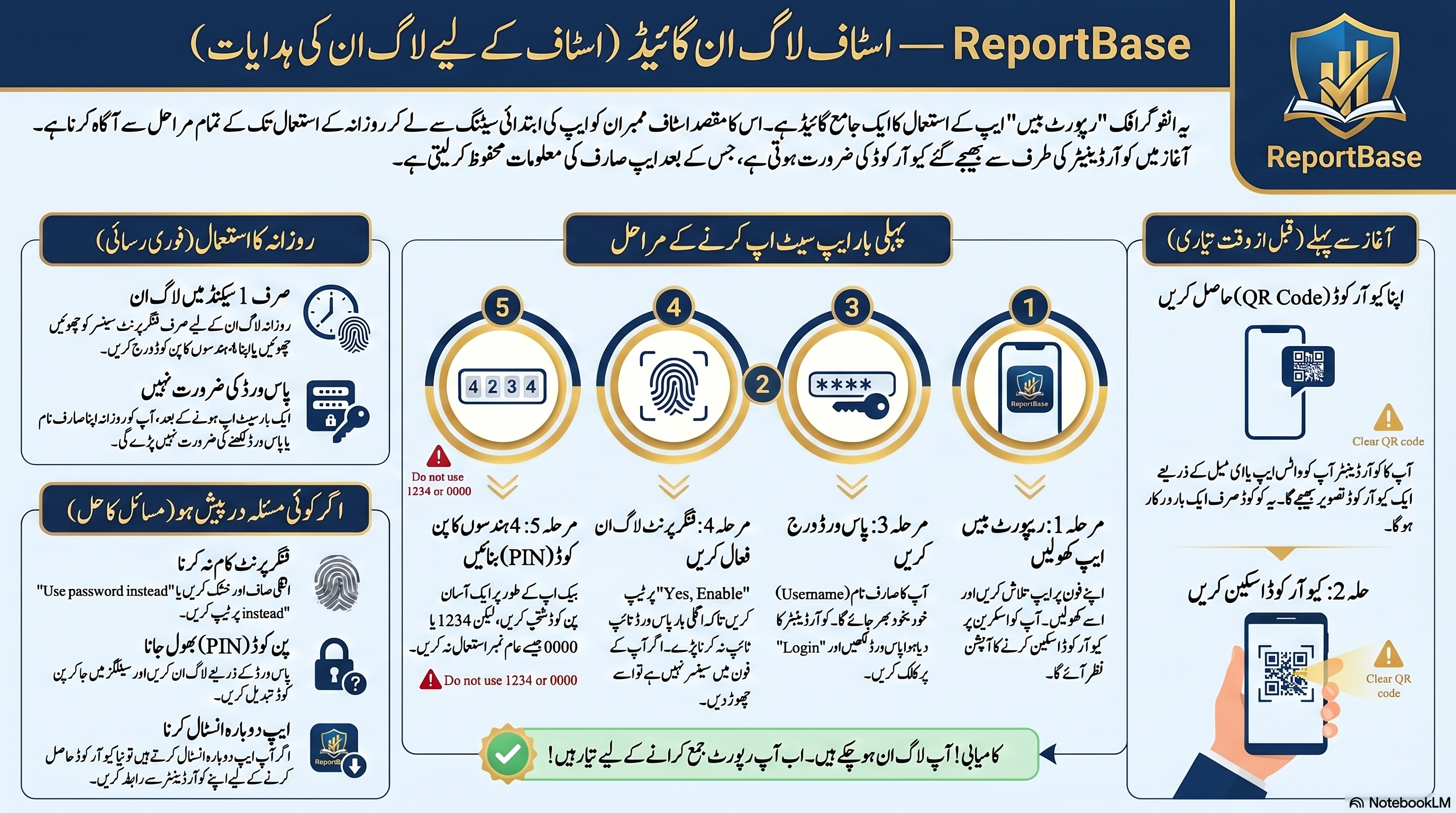
English Guide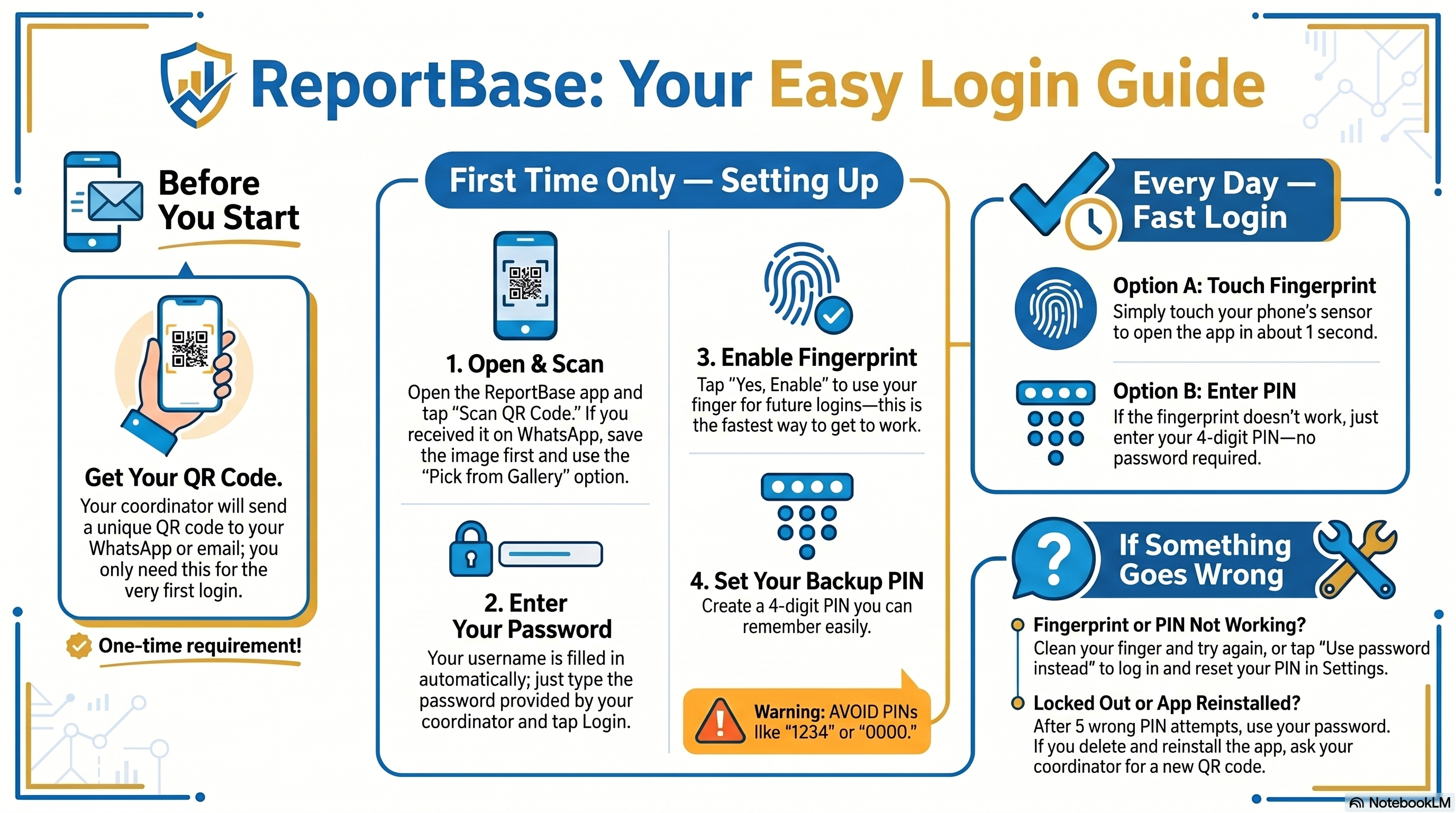 اردو گائیڈ
 📹 Video Walkthrough
Install the App
Search for ReportBase or ask your admin to share the direct link.
The app is free to download. No payment required.
You will see the setup screen — ready for your first scan.
First-Time Setup
You only do this once — when you first install the app or get a new phone.
Your admin will give you a QR code — printed or sent via WhatsApp. Tap Scan QR in the app and point your camera at it.
Your admin gives you these. The username is usually your name or initials (e.g. john.field).
The app will ask if you want to use your fingerprint. Tap Enable — this means you never type your password again.
Choose any 4 digits you will remember. Used when fingerprint is not available.
The app syncs your assigned forms automatically. This takes a few seconds on first load.
Daily Login
After first setup, you never enter your password again. Every day works like this:
Fingerprint login
Open the app → fingerprint prompt appears → touch sensor → you're in. Takes less than 2 seconds.
PIN login
If fingerprint fails or is unavailable → tap Use PIN → enter your 4 digits → you're in.
After signing out
The fingerprint/PIN prompt appears again — not the full login form. You don't need to scan the QR code again.
Finding Your Forms
After login you land on the Staff Dashboard. Your forms are listed here.
Why do I only see some forms?
Your admin assigns forms to departments. You see only the forms for your department. If a form is missing, ask your admin to check your department assignment.
Forms not showing up?
The app needs an internet connection to sync new forms. Connect to WiFi or mobile data, wait a few seconds, then pull down to refresh the dashboard.
External forms
Some organisations use forms imported from external sources. These appear in a separate section on your dashboard, labelled External Forms.
Filling a Form
From your dashboard, tap the form you want to fill.
Work through the fields one by one. Required fields are marked — you cannot submit until they are filled.
The camera opens. Take a new photo or choose from your gallery.
The app records your current coordinates automatically. Make sure location is enabled on your phone.
Use your finger to sign directly on screen. Tap Clear to redo.
| Field | What to do |
|---|---|
| 📝 Text | Type your answer |
| 🔢 Number | Type a number — no letters allowed |
| 📅 Date | Tap to open the date picker |
| ▼ Dropdown | Tap to see options, select one |
| ☑️ Checkbox | Tap one or more options |
| 📷 Photo | Tap to open camera or gallery |
| 📍 GPS | Tap to record your current location |
| ✍️ Signature | Draw with your finger |
Submitting a Form
The Submit button stays grey until all required fields are complete.
Your submission is saved to the phone instantly — even without internet.
When your phone has internet, the submission is automatically sent to your organisation. You will see a sync indicator in the dashboard.
Working Offline
No internet? No problem.
ReportBase is designed for field work. You can fill and submit forms without any internet connection. The app stores everything on your phone and syncs automatically when you reconnect.
What works offline
- Opening and filling any form
- Taking photos and capturing GPS
- Submitting forms (saved to phone)
- Viewing your past submissions
- PIN and fingerprint login
What requires internet
- Syncing new forms from your admin
- Uploading submissions to the server
- Checking for app updates
My Submissions
Tap My Submissions from the dashboard to see all forms you have submitted.
Submission status
| Status | What it means |
|---|---|
| ⏳ Pending | Saved on your phone, waiting to sync |
| ✅ Synced | Successfully uploaded to your organisation |
| ❌ Failed | Sync error — will retry automatically |
Viewing a past submission
Tap any submission in the list to see all your answers, photos, and the GPS location recorded at the time.
PIN & Fingerprint
Changing your PIN
Enter your current PIN, then set a new one.
Turning fingerprint on or off
Green = ON. Grey = OFF. Your phone must support fingerprint for this to appear.
Language
ReportBase supports 13 languages. You can switch at any time from Settings.
Changing the app language
The app restarts and displays in the chosen language.
Supported languages
English · اردو · پښتو · سنڌي · سرائیکی · بلوچی · বাংলা · Français · Nederlands · हिन्दी · العربية · Kiswahili · Português
Change Password
Both entries must match.
Your new password is active immediately.
FAQ
I scanned the QR but nothing happened
Make sure you are scanning the correct QR code — the one your admin gave you, not a random one. The QR must be for your organisation. Try moving closer or improving the lighting.
My forms disappeared
This usually means your department assignment changed in the admin panel. Connect to the internet and pull down to refresh. If forms are still missing, contact your admin.
The app shows a TRIAL banner
This is your organisation's licence status — not something you can change. Let your admin know so they can sort it from their end.
My submission is stuck on Pending
The app needs internet to upload. Connect to WiFi or mobile data. The sync happens automatically — you don't need to tap anything. If it stays stuck after reconnecting, try closing and reopening the app.
I got a new phone — do I start over?
Yes — install the app, then ask your admin to reset your device. They do this from the Client Panel. Once reset, scan the organisation QR code again and log in. Your past submissions are safe on the server.
Who do I contact for help?
First contact your organisation admin — they manage your account. For technical issues with ReportBase itself, your admin can reach out to hello@reportbase.app.
Need more help? Contact your organisation admin or email hello@reportbase.app